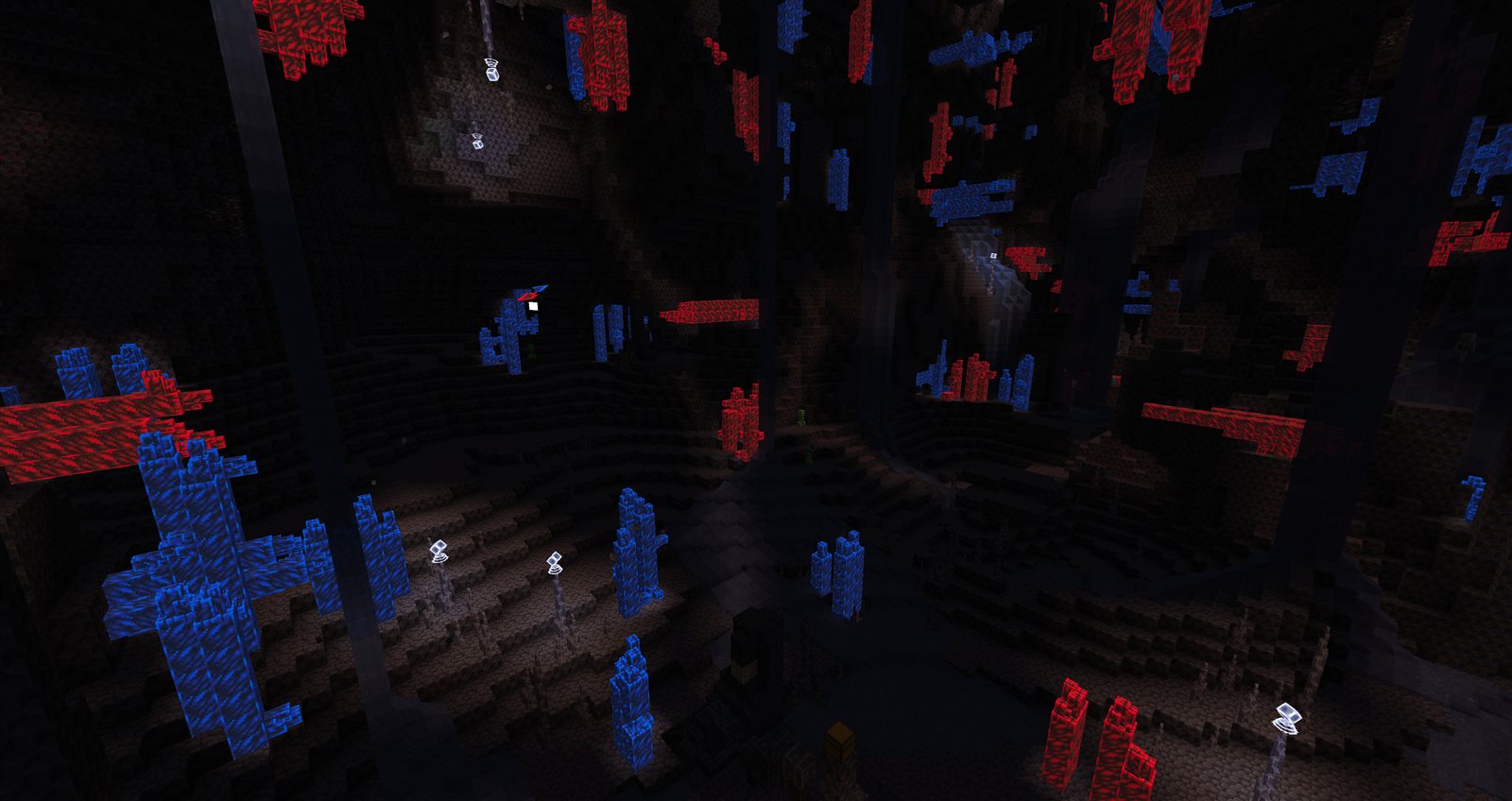
Magnetic Caves cavern overview in the original Java Edition mod. Screenshot: Alex's Caves Wiki contributors.
Most problems with Alex Caves Mod come from a handful of causes: a missing library, a version mismatch, the wrong launcher profile or not enough memory. Work through these sections in order.
Game crashes on startup
- Make sure Citadel is installed and matches your Minecraft version and loader.
- Confirm every mod in your
modsfolder is for the same Minecraft version. - Remove other mods temporarily to see if a conflict is the cause.
- Open the latest log in
.minecraft/logsand look for the mod named near the error.
Missing dependency screen
If the loader reports a missing mod, download the exact dependency it names. For Alex Caves Mod this is usually Citadel. On Fabric ports, Fabric API is also commonly required.
The mod does not appear in the Mods list
- Check that you launched the Forge (or NeoForge) profile, not vanilla.
- Place the
.jardirectly insidemods, not in a sub-folder. - Make sure the file still ends in
.jarand was not unzipped.
I cannot find any of the biomes
The biomes are rare and generate only in new chunks. Use the discovery path in our guide on finding the biomes – start with an Underground Cabin and its cave tablets.
Low FPS or long loading
- Allocate a little more memory in your launcher profile, but leave enough for your system.
- Lower render and simulation distance.
- Keep the number of other heavy mods reasonable.
- Update your graphics drivers.
Biomes look wrong
Shaders can change the custom fog, colour and lighting of several biomes. Try disabling shaders to see the intended look. Resource packs can also override textures.
Still stuck?
Re-check the Forge 1.20.1 install guide and the download guide. If you use a community port, read that port's page and report issues to its author.
Start by describing where the failure happens
A launch failure, a crash while opening a world and a visual problem inside a cave need different investigations. Write down the last successful step before changing files. Does the launcher close before Minecraft appears? Can you reach the title screen? Does every world fail or only one save? Does the issue happen immediately or after visiting a particular place? These distinctions narrow the search. Keep the exact message rather than paraphrasing it as a crash. If the game is still running, save what you can and close it normally before copying files or changing the active mod list.
Collect the actual versions in use
Open the selected launcher's instance settings and record its Minecraft release, loader build and game directory. Compare the actual Alex Caves and library files in that directory with the requirements for the release you intended to install. A filename in Downloads does not prove that the same file is active in the game. Look for duplicate versions and files meant for another loader. Keep old releases outside the active mods folder. This simple inventory often reveals a mismatch before you need to investigate more complicated conflicts, and it gives you a precise starting point for any later support request.
Read the first useful error rather than the last line
A launcher exit code usually tells you that something failed, not what caused the failure. Open the relevant crash report or latest log and look for a named missing dependency, incompatible version range or exception associated with the failure. Preserve the complete report for reference. The final line may simply describe shutdown after an earlier error. Avoid deleting configuration or reinstalling Minecraft based only on an exit number. When sharing a report, include the circumstances and version list, and review it for personal file paths or server details before posting it somewhere public.
Reproduce the problem in a minimal instance
Create a separate test directory with the intended loader, Alex Caves and only the required dependencies. Use a disposable world and leave your main save untouched. If the clean setup works, the original problem may involve another mod, a resource pack or a configuration difference. Add optional components in small groups until the failure returns, keeping a record of each change. For a large pack, dividing optional mods into groups can reduce the number of comparisons. Make sure you preserve dependency groups together; removing a library while leaving its dependent mod installed creates an unrelated startup error.
Separate world problems from general loading problems
If a new world works but one existing save fails, copy that save before investigating further. Note whether the crash occurs while loading, approaching a location or interacting with a particular block or entity. Do not repeatedly remove content mods and reopen the original world, because saved content may depend on them. Compare the world against the mod combination that last opened it successfully. Restore a matching backup when necessary. If you report the issue, explain whether it reproduces in a new world and whether you changed versions shortly before the failure began.
Investigate performance with a repeatable comparison
Use the same location, graphics settings and movement route when comparing performance changes. First visits to unexplored terrain can be slower than walking through already generated areas, so allow loading to settle. Lower render distance and simulation distance separately, then observe which adjustment helps. Check whether the slowdown affects frame rate, world responsiveness or both. Avoid allocating nearly all system memory to Minecraft; the operating system and other applications need room too. Keep a note of your memory settings and return to the previous value if increasing the allocation does not improve the specific symptom you are testing.
Check cave appearance without visual extras
Disable shaders and return to the default resource pack before judging unusual fog, colors or brightness. Visit the same cave again and compare the result. If the problem disappears, reintroduce visual additions one at a time so you can identify the relevant combination. Include screenshots from both configurations in your notes. A biome's intended atmosphere may already differ considerably from ordinary caves, so brightness alone is not enough to diagnose a defect. Inspect missing textures, invisible entities or consistently broken effects separately. Keep the graphics mod, shader and resource pack versions alongside the content mod versions when documenting a rendering issue.
Diagnose missing biomes without deleting the world
Confirm that Alex Caves appears in the loaded mod list and test fresh terrain in a disposable world. Rare generation means that a short walk around spawn does not prove anything is broken. Previously explored chunks also retain terrain generated before the mod was installed. Follow the intended discovery progression instead of repeatedly reinstalling the mod because one nearby cave is ordinary. If you are testing generation deliberately, use a copied creative world and the commands available in that installation. Keep those experiments separate from your survival save and distinguish a genuine generation failure from simply not having found a rare destination yet.
Write a report another person can reproduce
A useful report states the game version, loader, mod and library releases, then describes the shortest sequence that produces the problem. Explain what you expected and what actually happened. Mention whether the issue occurs in a minimal setup and whether it affects new worlds. Attach the relevant log through the support channel's accepted method. Avoid sending only a cropped error screenshot when the full report contains the cause. Once you find a working configuration, save its version list and keep a backup before further experiments. That gives both you and a maintainer a stable reference for future comparisons.
Conclusion
Most Alex Caves Mod problems come from a missing Citadel file, a version or loader mismatch, the wrong launcher profile or too little memory. Work through the checks in order, read the latest log when the game crashes and change one thing at a time. If you use a community port, report port-specific problems to that port's author.