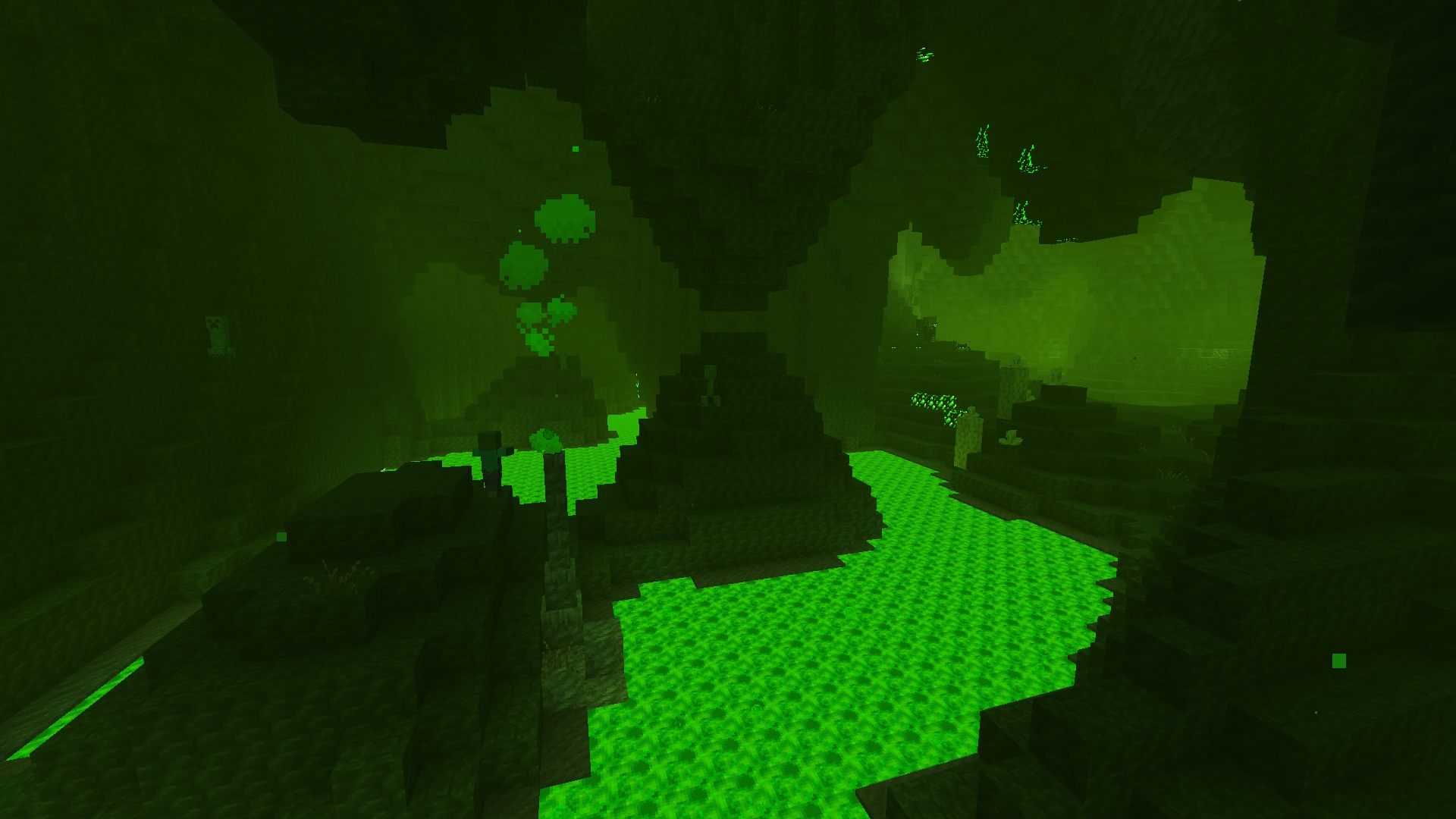
Toxic Caves in the original Java Edition mod. Screenshot: official Alex's Caves gallery, Alexthe668 and Noonyeyz.
NeoForge is a community-driven mod loader that grew out of Forge. Many players search for Alex Caves mod NeoForge because they want to play on newer Minecraft versions. Here is what you should know before switching loaders.
What is NeoForge?
NeoForge started from the Forge codebase around Minecraft 1.20.1 and continues development for newer versions. For 1.20.1, NeoForge stays very close to Forge, which is why some 1.20.1 mod files list both loaders on their download pages.
Alex Caves Mod and NeoForge versions
Minecraft 1.20.1
The original Alex Caves Mod release line is for 1.20.1. File listings on the original download source show Forge and NeoForge for that version. Always check the loader tags on the exact file you download.
Minecraft 1.21 and newer
For newer versions, Alex Caves Mod is only available through unofficial community ports made by other developers. These ports are not made by the original creators, can contain bugs and may need their own dependencies.
Report bugs from a community port to that port's author, not to the original mod team.
How to set up NeoForge
- Download the NeoForge installer for your chosen Minecraft version from the official NeoForge site.
- Run it, choose Install client, then open your launcher.
- Add the Alex Caves Mod file and a Citadel build that match the same version and loader.
- Launch the NeoForge profile and check the Mods list.
Forge or NeoForge – which should you pick?
If you just want to play Alex Caves Mod as intended, use Forge on 1.20.1. Choose NeoForge when your modpack already uses it, or when you specifically want a newer Minecraft version and accept the limits of a community port.
Tips for a stable NeoForge pack
- Keep every mod on the same Minecraft version and loader.
- Add mods in small groups so problems are easy to trace.
- Back up worlds before updating a port.
- Read the port's page for extra required libraries.
Separate the loader name from the Minecraft version
NeoForge describes a mod loader, while a number such as 1.20.1 describes the Minecraft release. Neither value replaces the other when checking compatibility. A file tagged for NeoForge on one Minecraft version is not automatically suitable for every other NeoForge installation. Read the details of the individual file rather than relying only on the project title. Keep a note of the exact game version, loader build and mod release you intend to use. This is particularly useful when search results combine the original project with independently maintained ports that support a different set of game versions.
Treat the selected file as the compatibility reference
The original project's 1.20.1 file listing includes Forge and NeoForge tags. That does not establish support for an arbitrary newer Minecraft release. Start with the compatibility information on the specific download and read any installation notes attached to it. If a different project offers a port, check its maintainer, supported versions and dependency list independently. Do not mix instructions from the original release with a port's instructions just because both pages use the Alex Caves name. When a requirement is unclear, leave your working instance intact while you investigate rather than trying random combinations in your main world.
Create a clean NeoForge instance for comparison
Use a separate game directory for the NeoForge test. Launch the loader without optional mods first, then add the selected Alex Caves file and the dependencies that its listing requires. Keep this test separate from a Forge installation, even when some files appear compatible with both. Independent directories prevent leftover configuration and duplicate libraries from affecting the result. Create a small disposable world and confirm that it can save and reload. You can then compare performance and behavior against your existing setup using similar settings, rather than comparing two environments with completely different mod lists and graphics options.
Check libraries individually when changing loaders
A content mod and its supporting libraries form a compatibility chain. Matching the main mod while leaving an incompatible library behind can still stop the game from starting. Read the dependency information for every required component and check that the chosen file supports the intended Minecraft version and loader environment. Do not assume that a library with the same display name is interchangeable across releases. Keep one intended copy of each dependency in the active mods folder. If the loader names a missing version range, compare that requirement with your actual file rather than searching only for the newest upload.
Understand why moving a save needs extra care
A world can contain blocks, entities and configuration dependent data from its existing mods. Changing the loader or switching to a port may alter how those elements are handled. Make a full backup before the move and test a copy in the new instance. Visit important builds, check stored items and confirm that the world saves and reloads normally. Do not assume that reaching the spawn point proves everything survived. Avoid repeatedly moving the same active world back and forth between different environments; keep the original intact until you have decided which setup you will continue using.
Check multiplayer compatibility before inviting players
If you run a server, prepare a version list that includes the game, loader, content mods and required libraries. Have each player use a matching instance rather than guessing from a screenshot of your mods folder. A client can reach its own title screen successfully and still fail to join a server with incompatible content. Read both the client disconnect message and server log when this happens. Test with a small group and a copied world before moving your main server. This gives you room to resolve configuration differences without interrupting every player's existing progress or replacing a stable server unnecessarily.
Evaluate rendering changes separately from loading errors
A loader problem usually appears before or during startup, while unusual fog, lighting or particles may be a rendering compatibility issue after the world opens. Begin visual checks with the default resource pack and without shaders. Compare the same cave with optional graphics modifications disabled, then add them back one at a time. Keep screenshots and note which setting changed between tests. Do not interpret a dark or differently colored biome as proof that the entire port is broken without testing the simpler configuration. Likewise, a successful visual comparison does not prove that every recipe or entity behaves identically.
Choose a setup according to the rest of your pack
The right environment depends on the complete collection of mods you want to play, not only on the loader name. List your essential mods first and check where their supported game versions overlap. A newer Minecraft release may require giving up a favorite mod or using a separately maintained alternative. If your existing pack already works well, create a trial instance before migrating it. Preserve the known working versions and settings so that you can return to them. This makes choosing between Forge, NeoForge and a community port a practical compatibility decision rather than a race toward the highest version number.
Conclusion
Alex Caves Mod can run on NeoForge for Minecraft 1.20.1 when the file lists that loader, while newer Minecraft versions depend on unofficial community ports. Choose the loader your modpack already uses, keep every file on the same version and report port bugs to the port's author. For the intended experience, Forge 1.20.1 remains the safest choice.