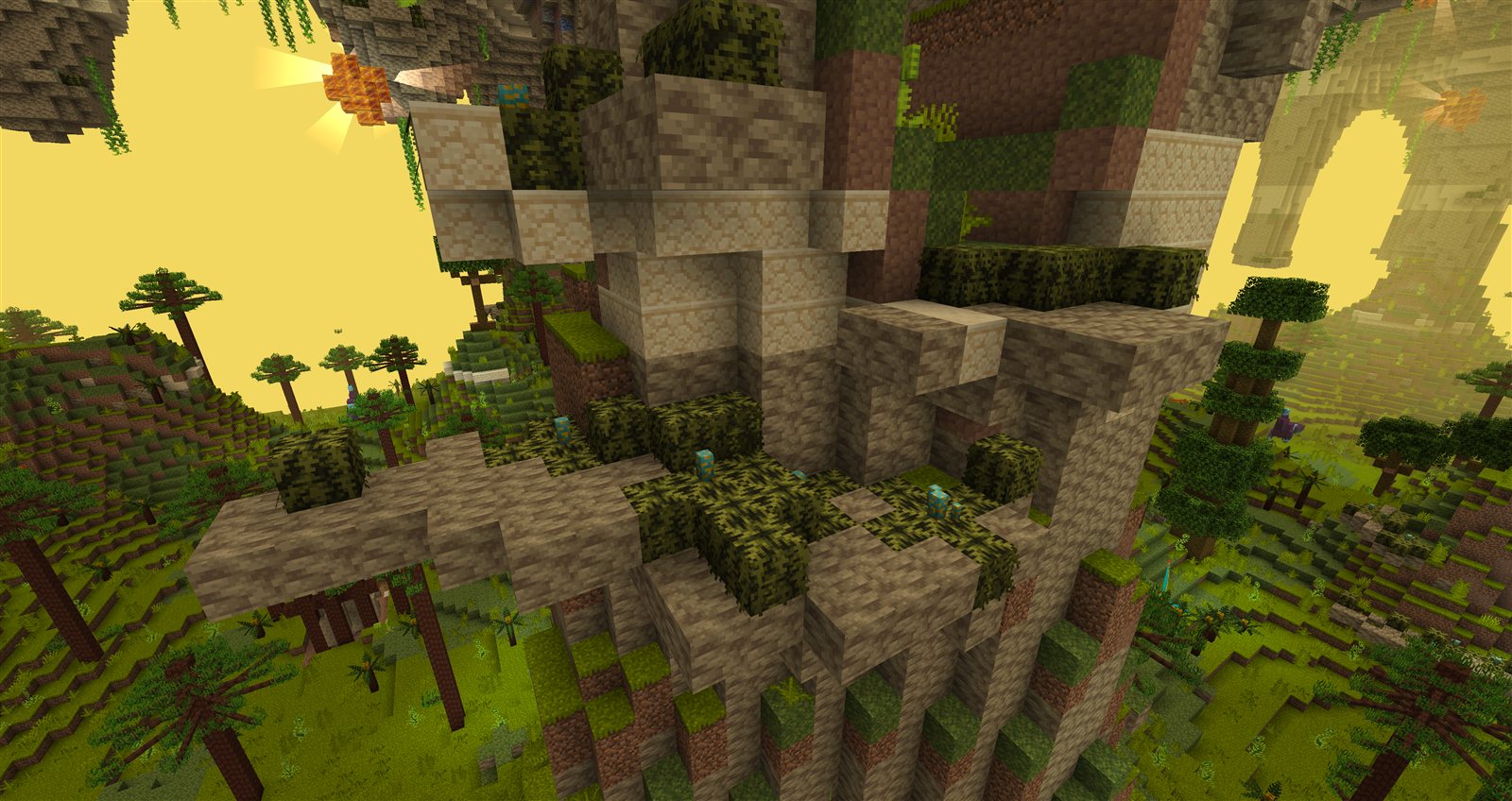
Primordial Caves stone bridge in the original Java Edition mod. Screenshot: Alex's Caves Wiki contributors. Java Edition reference image; not a Bedrock or mobile gameplay capture.
Minecraft PE (Pocket Edition) is the mobile version of Minecraft Bedrock. If you searched for Alex Caves mod Minecraft PE, this guide explains what works on phones and tablets and what to avoid.
Does Alex Caves Mod work on Minecraft PE?
No – not directly. Alex Caves Mod is built for Minecraft Java Edition and needs a Java mod loader such as Forge. Minecraft PE runs Bedrock Edition, which does not load Java mods. For the full background see our Bedrock 1.21 guide.
Watch out for fake APK downloads
- A real Minecraft mod is never an Android
.apkapp. - Do not install "mod launchers" that ask for unusual permissions.
- Avoid sites that require surveys or payment to unlock a "mod".
- Only use your device's official app store for Minecraft itself.
What mobile players can do
Use Bedrock add-ons
Minecraft PE supports add-ons. Search for cave or biome add-ons from creators you trust and import them as .mcpack or .mcaddon files.
Play Java on a computer
For the actual Alex Caves Mod experience, use a Windows, macOS or Linux computer with Java Edition and follow the Forge 1.20.1 guide.
Join a Java server from PC
Some communities host modded Java servers. You still need a computer with the same mods installed to join them.
Learn about the biomes anyway
Even if you are on mobile right now, you can explore what the mod offers in our Alex Caves Mod wiki-style biome guide.
Check the edition on your phone first
Players still use the name Minecraft PE for Minecraft on mobile devices, but the current mobile game belongs to Bedrock Edition. That matters because instructions written for a Java mod loader do not apply directly to the mobile app. Check the game version on the title screen and identify your device platform before following a tutorial. A guide that tells you to install desktop Forge or copy a JAR into a desktop Minecraft directory is describing a different environment. Knowing this early saves time and helps you evaluate mobile content on the basis of what your game can actually load.
Do not confuse the screenshot with mobile availability
The cave screenshot on this page comes from the original Java Edition mod gallery. It shows the kind of underground environment that attracts players to Alex Caves; it is not presented as a capture from the mobile Bedrock app. When another project advertises a mobile adaptation, look for demonstrations from the intended platform. Read captions and feature descriptions carefully. Familiar cave scenery in a thumbnail does not show how a pack installs, which creatures it includes or whether it works on your version. Treat the image as one piece of context and verify the actual package separately.
Understand mobile content packages
Mobile Bedrock content normally relies on the edition's supported pack formats and import process. A behavior pack can define gameplay changes, while a resource pack supplies assets such as textures or sounds. Follow the chosen project's instructions for importing and enabling its components on a test world. You may need to activate more than one pack, depending on how the creator distributed it. Changing a Java file's extension does not turn it into a mobile add-on. Similarly, installing an unrelated APK does not provide the desktop mod loader or translate the original mod's code into Bedrock's content system.
Choose content with an honest feature list
Look for a specific explanation of what an add-on adds: creatures, blocks, structures, recipes or a prepared world. Check whether these are generated during play or available only through a supplied map. Read any limitations and version requirements before downloading. An independent project can be enjoyable without reproducing the entire original Java mod, provided its description is clear. Avoid assuming that the words full version mean every biome and mechanic is included. Compare the features you care about with demonstrated gameplay rather than relying on a familiar title or a long list of unrelated Minecraft search keywords.
Set up a disposable world on mobile
Import unfamiliar packs into a fresh world first and keep your main survival save unchanged. Confirm that the required components are active in that world's settings. Enter the world, test a few listed features, then save and reload. Watch for missing textures, repeated errors or content that disappears after reopening. If the author requires experimental options, read what those options affect and keep the trial separate from worlds you want to preserve. A short controlled test is easier to recover from than adding several packs to a large shared save and trying to guess which one caused a problem.
Plan for storage and device performance
A mobile device has limited storage and memory compared with many desktop setups, so leave room for the game, downloads and world backups. A package's download size does not tell you exactly how much space an expanded world will eventually use. Start with moderate render distance and avoid stacking several demanding visual packs during the first test. Let new areas finish loading before comparing responsiveness. If the device becomes unusually slow, close other applications and return to a simpler setup. Record which changes helped so you do not need to repeat the same experiment whenever you open the world.
Keep touch controls in mind when exploring
Underground exploration can be more awkward on a small screen when movement, combat and inventory management compete for the same space. Adjust your control layout before entering dangerous areas and practice in a safe part of the test world. Keep frequently used supplies accessible, mark a return route and avoid carrying everything valuable during your first visit. These are general exploration habits rather than promises about a particular add-on's mechanics. A pack that looks attractive in a desktop video may feel different with touch input, so assess whether its gameplay remains comfortable on the device you actually use.
Test shared play before starting a long campaign
If you want to play with friends, check how the host shares required packs and whether every device can load them. Start a brief test session before committing everyone to a long survival world. Compare game versions and confirm that players see the same blocks and entities. A pack that works in single player may still have multiplayer limitations documented by its author. Keep a backup of the host world and avoid making several content changes between sessions. When a player encounters an issue, record the device, game version and active packs instead of assuming everyone has an identical installation.
Know when Java Edition is the better match
If your goal is specifically the original mod's progression and content, use a compatible Java Edition setup on suitable hardware. If you want to remain in the mobile Bedrock app, choose an add-on that openly documents its own features and limitations. Both decisions start with identifying the experience you want rather than chasing a file labeled for every platform. Keep your existing mobile world safe while experimenting, and do not treat a promotional screenshot as a guarantee of compatibility. Clear edition information, a reproducible installation process and a successful test world are better foundations for a lasting playthrough.
Conclusion
Alex Caves Mod does not run on Minecraft PE, because phones and tablets use Bedrock Edition, which cannot load Java mods. Stay away from APK files that claim otherwise, try trusted Bedrock add-ons if you want new caves on mobile, and use a computer with Java Edition for the actual mod.